
 UK
UK




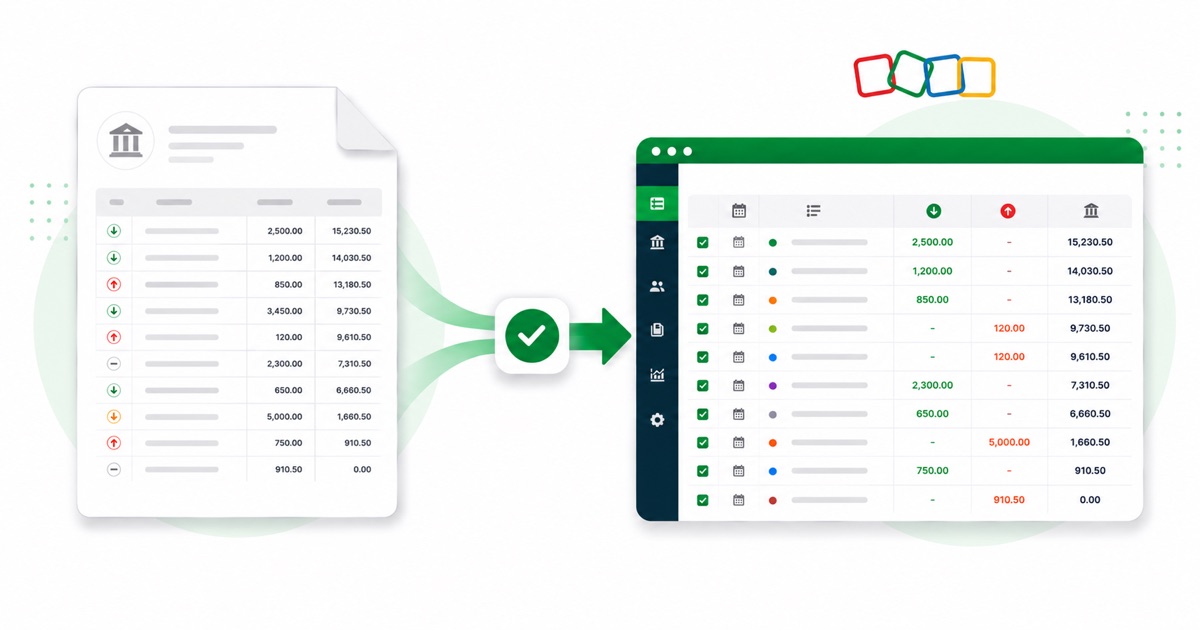
About Santander statements
Santander UK is the British arm of the Spanish Santander group and a familiar high-street name here. For a high-street account like this, the statement is a normal monthly PDF you pull from Online Banking, under the account's Statements & documents.
The part a copy-paste can't handle is the layout. Santander tucks a payment-type label — card payment, Direct Debit, standing order or Faster Payment — inside the description column before the payee. The converter reads all of that into its own columns instead of losing it.
Currency stays GBP (pounds) and the DD/MM/YYYY dates carry straight through, exactly as they appear on the statement. If your only copy is a scan or a phone photo, that's fine — OCR handles it, and the totals still get reconciled.
What lands in Zoho Books is a clean, checked file — so the only thing left is the reconciling you'd do anyway.
Why people convert Santander to Zoho Books
Zoho Books reconciles from imported statements, and a Santander feed isn't always available or current. Converting the PDF to a clean CSV gives Zoho exactly what its Import Statement screen wants, for any month you need.
The common case is a bookkeeper handed a folder of Santander PDFs and told to "get these into Zoho Books." Converting each one is far quicker than retyping, and the balance check means you trust the totals before they land in the books.
Import a Santander statement into Zoho Books
Zoho Books imports a CSV — there's no separate Zoho file, so you use the clean CSV.
- Convert the PDF above and download the CSV.
- In Zoho Books: Banking → pick the account → Import Statement.
- Upload the CSV and map Date / Description / Amount.
- Import, then categorise the lines.
The totals are checked first
The converter checks the maths before handing you the file — so if a transaction dropped out of the PDF, you know about it now, not when the Zoho Books balance is off.
Frequently asked questions
Does Zoho Books need a special file?expand_more
No special file — Zoho Books imports a plain CSV, so you use the clean CSV from here. Go to Banking → your account → Import Statement, then map Date, Description and Amount. There's a preview before it commits, so you can check the columns matched before the lines post.
What does a Santander statement look like?expand_more
Santander tucks a payment-type label — card payment, Direct Debit, standing order or Faster Payment — inside the description column before the payee. The converter reads each of those into its own column, so the Zoho-ready CSV imports into Zoho Books cleanly.
Where do I download the Santander statement?expand_more
From Online Banking, under the account's Statements & documents. Save the PDF, then drop it into the converter above — multi-page and multi-month statements are read in one go.
Does it work on a scanned Santander statement?expand_more
Yes. Scanned or photographed PDFs are read with OCR into the same columns, and the balance check still runs, so a scan converts the same as a digital download.
Is it free?expand_more
Yes — the CSV downloads with no login and no charge to start.