
 NZ
NZ




About BNZ statements
BNZ (Bank of New Zealand) is one of NZ's big four banks and is owned by Australia's NAB. You grab the statement PDF from BNZ Internet Banking or the app, under Statements — same as you would for any branch-based account.
It helps to know how the statement is put together. A BNZ statement runs Withdrawal, Deposit and Balance in NZD, with an EFTPOS, direct-debit or automatic-payment label describing each line. A plain PDF export flattens that structure; the converter keeps each piece in its own column.
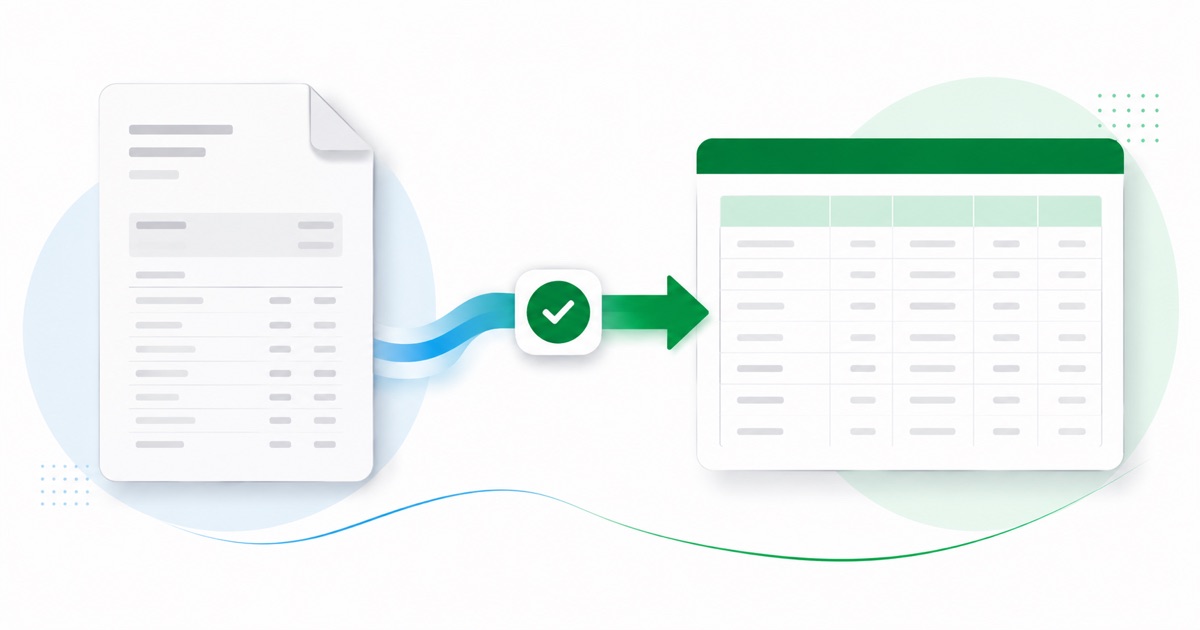
You keep NZD (New Zealand dollars) amounts and DD/MM/YYYY dates end to end, so nothing needs re-checking after the import. Scanned or photographed PDFs work too: OCR reads them into the same columns, and the running balance is checked before anything downloads.
After that you're just reconciling in Xero; the awkward part of getting the data out of the PDF is handled.
Why people convert BNZ to Xero
If you're catching up a set of books in Xero, or onboarding a client, you'll have BNZ PDFs that never came through a feed. Converting them gives you an Import a Statement file for each gap, so the history lines up without manual entry.
It also saves the back-and-forth at year end. Instead of asking a client for a CSV their BNZ login may not even offer, you take the PDF they already have and convert it, so the numbers in Xero match the statement line for line.
Import a BNZ statement into Xero
Xero takes the CSV through its own Import a Statement screen.
- Convert the PDF above and download the Xero CSV.
- In Xero: Accounting → Bank accounts.
- Open the account, then Manage account → Import a statement.
- Upload the CSV — the date, description and amount columns line up.
- Reconcile the imported lines as usual.
The totals are checked first
The totals are checked before you download. If a row is missing, the statement gets flagged right here — so a gap shows up before it reaches Xero or your client, not after.
Frequently asked questions
Will it import into Xero?
Yes — the CSV goes in through Xero's Import a Statement screen and the date, description and amount columns line up, so you go straight to reconciling. If Xero asks you to confirm the column mapping the first time, save it and later imports remember the layout.
How is a BNZ statement laid out?
A BNZ statement runs Withdrawal, Deposit and Balance in NZD, with an EFTPOS, direct-debit or automatic-payment label describing each line. The converter reads each of those into its own column, so the Xero-ready CSV imports into Xero cleanly.
Where do I download the BNZ statement?
From BNZ Internet Banking or the app, under Statements. Save the PDF, then drop it into the converter above — multi-page and multi-month statements are read in one go.
Does it work on a scanned BNZ statement?
Yes. Scanned or photographed PDFs are read with OCR into the same columns, and the balance check still runs, so a scan converts the same as a digital download.
Do I have to pay up front?
Converting is free to start. Excel, CSV and JSON download with no login; the Xero file is included with every paid plan, starting with Starter.