
 US
US




About Ally statements
Ally is a branchless online bank, so every statement is a download — there's no paper option and no branch to ask. The download from the Ally website, under Statements is the record to convert — there's no posted statement to fall back on.
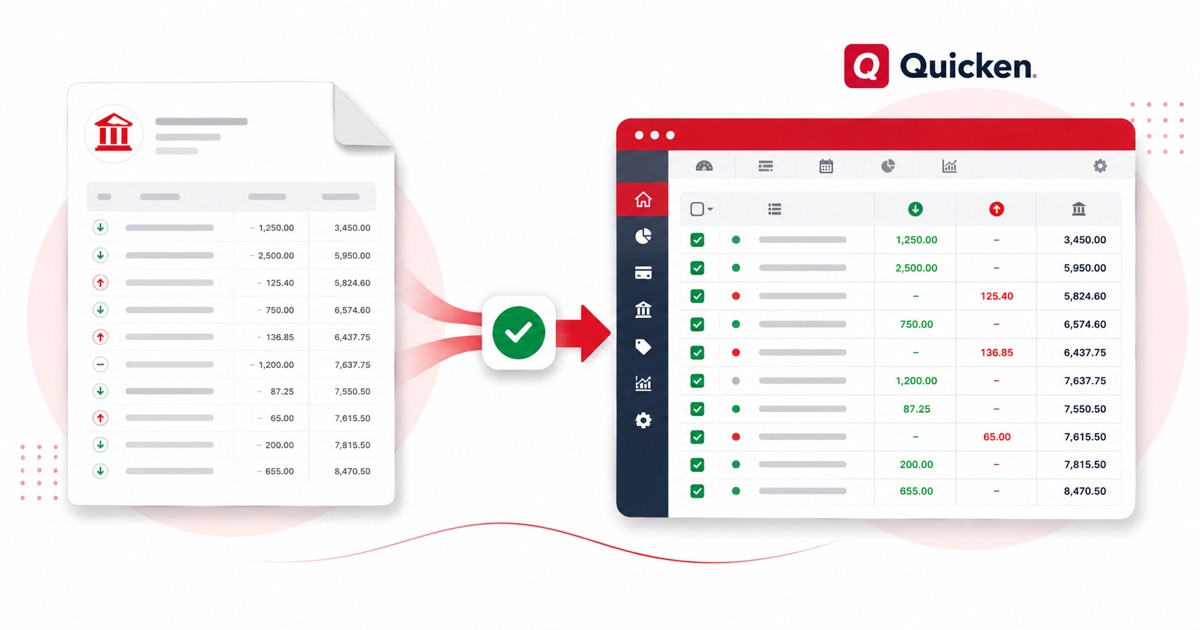
It helps to know how the statement is put together. Ally's online statement is a clean single list, with interest paid on its own line and savings buckets sitting inside one account balance. A plain PDF export flattens that structure; the converter keeps each piece in its own column.
The figures stay in USD (US dollars) and dates read MM/DD/YYYY, the same as on the original statement. A scanned statement is no problem; it's read with OCR into the same layout, with the balance checked either way.
Once it's in Quicken, you reconcile the lines like any other import — the conversion just saves you the typing.
Why people convert Ally to Quicken
If you're rebuilding history in Quicken — an old Ally account, or a period the download skipped — converting the PDF gives you an OFX you can import directly, rather than typing the register out.
It's handy mid-year too, not just at catch-up. A one-off Ally account, a statement the feed skipped, or a closed account you still need on file — convert the PDF and it goes into Quicken like any other import.
Import a Ally statement into Quicken
Quicken reads OFX (preferred) or QIF.
- Convert the PDF above and download OFX (preferred) or QIF.
- In Quicken: File → Import → Web Connect File for OFX, or File → Import → QIF File for QIF.
- Choose the account to import into.
- Review the register and accept the new transactions.
The totals are checked first
Before the OFX file downloads, the running balance is checked end to end. A missing or doubled line is caught at this step, not after it's already in Quicken.
Frequently asked questions
Will it import into Quicken?
Yes — download OFX (best) or QIF and import it under File → Import. OFX carries a unique id per line, so re-importing the same file won't create duplicates.
What's on a Ally statement?
Ally's online statement is a clean single list, with interest paid on its own line and savings buckets sitting inside one account balance. The converter reads each of those into its own column, so the OFX file imports into Quicken cleanly.
Where do I get the Ally statement PDF?
From the Ally website, under Statements. Export the actual statement PDF rather than screenshotting the transaction list — the PDF has the dates, amounts and balance the converter reads.
What if my Ally PDF is just a scan?
Yes. Scanned or photographed PDFs are read with OCR into the same columns, and the balance check still runs, so a scan converts the same as a digital download.
What does it cost to start?
Converting is free to start. Excel, CSV and JSON download with no login; the Quicken file is included with every paid plan, starting with Starter.