
 US
US




About SoFi statements
SoFi is an online bank that grew out of student-loan refinancing and now runs checking and savings accounts. There's no paper option, so the statement PDF from the app or website, under Statements is your source file.
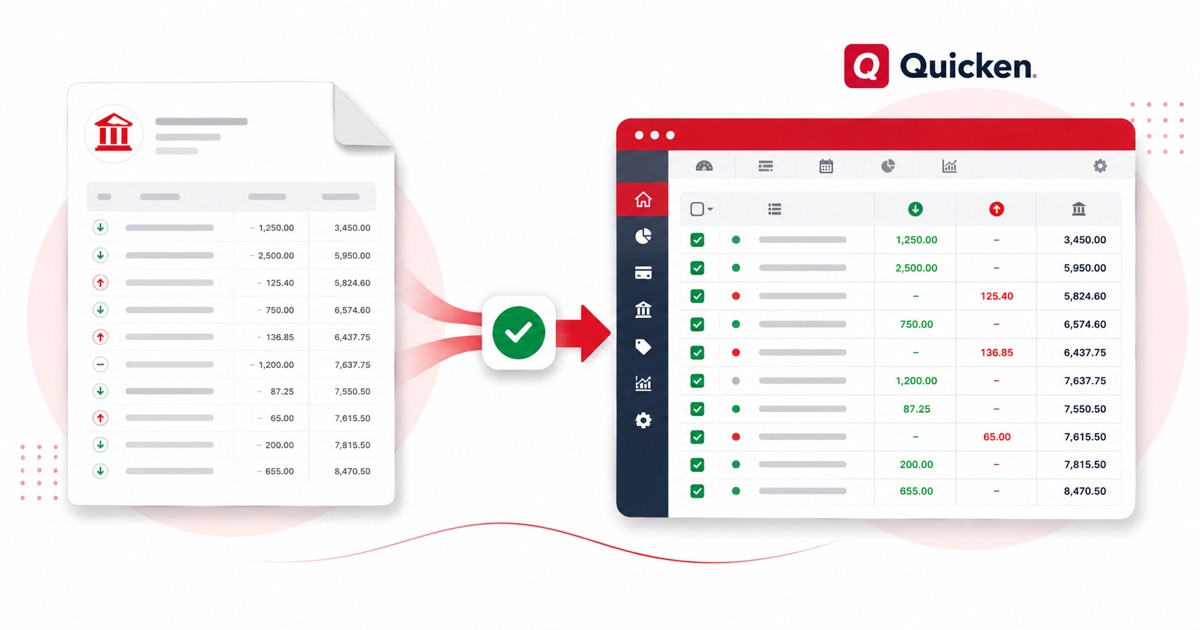
A SoFi statement is a single list where Vaults show as transfers and an early direct deposit keeps the date SoFi credited it. That's exactly the detail that gets scrambled when you paste a PDF into a spreadsheet, and exactly what the converter preserves, column by column.
Currency stays USD (US dollars) and the MM/DD/YYYY dates carry straight through, exactly as they appear on the statement. Even a photographed page converts — OCR pulls the columns out, and the reconciliation check runs regardless of how the PDF was made.
Once it's in Quicken, you reconcile the lines like any other import — the conversion just saves you the typing.
Why people convert SoFi to Quicken
Quicken can only download so far back, and a SoFi connection might not cover an old account or a closed one at all. Converting the statement PDF to OFX lets you load those transactions in by hand, with a unique id per line so a re-import won't double anything.
For anyone reconciling SoFi against Quicken after the fact, the value is in not retyping. You keep the original PDF as your source, convert it, and reconcile the imported lines — the figures stay tied back to the statement.
Import a SoFi statement into Quicken
Quicken reads OFX (preferred) or QIF.
- Convert the PDF above and download OFX (preferred) or QIF.
- In Quicken: File → Import → Web Connect File for OFX, or File → Import → QIF File for QIF.
- Choose the account to import into.
- Review the register and accept the new transactions.
The totals are checked first
Every file is reconciled first: opening balance plus money in, minus money out, should land on the closing balance. If it doesn't, you see it here instead of finding out inside Quicken.
Frequently asked questions
How do I get the SoFi statement into Quicken?
Yes — download OFX (best) or QIF and import it under File → Import. OFX carries a unique id per line, so re-importing the same file won't create duplicates.
How is a SoFi statement laid out?
A SoFi statement is a single list where Vaults show as transfers and an early direct deposit keeps the date SoFi credited it. The converter reads each of those into its own column, so the OFX file imports into Quicken cleanly.
Where do I get the SoFi statement PDF?
From the app or website, under Statements. Export the actual statement PDF rather than screenshotting the transaction list — the PDF has the dates, amounts and balance the converter reads.
Can I use a photo of my SoFi statement?
Yes. Scanned or photographed PDFs are read with OCR into the same columns, and the balance check still runs, so a scan converts the same as a digital download.
Is it free?
Converting is free to start. Excel, CSV and JSON download with no login; the Quicken file is included with every paid plan, starting with Starter.