
 AU
AU




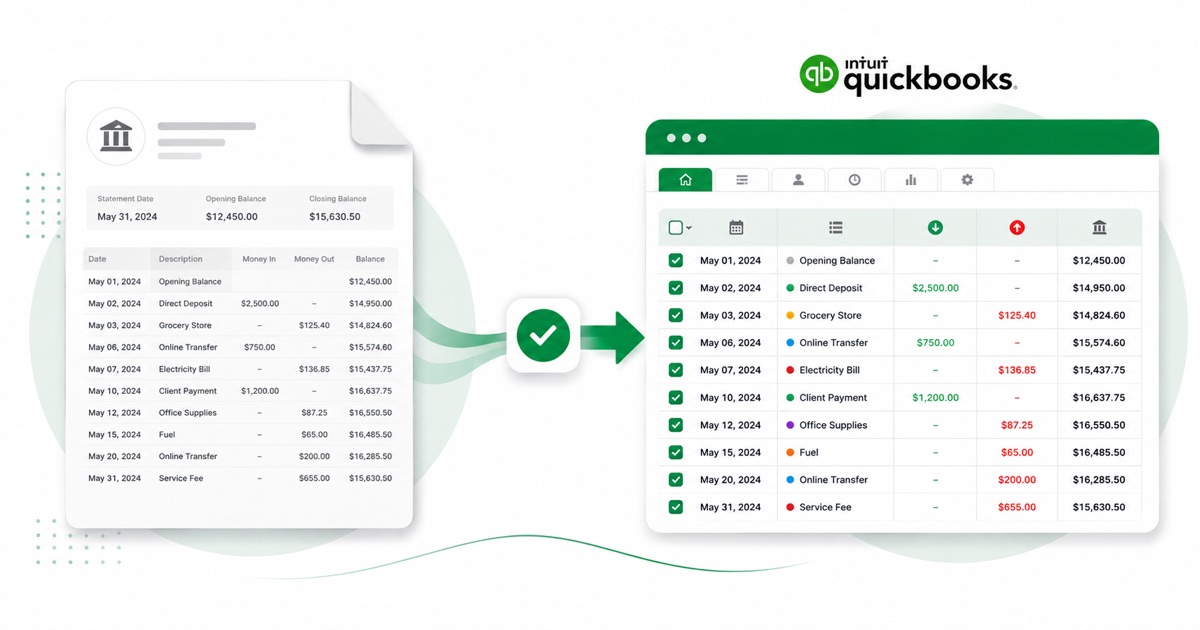
About ANZ statements
ANZ is one of Australia's big four banks and also operates widely across New Zealand and the Pacific. The file you want is the official statement PDF from ANZ Internet Banking or the app, under Statements, not a printed mini-statement or a transaction search.
The part a copy-paste can't handle is the layout. An ANZ card line carries the merchant, the location and the original purchase date, which can differ from the processing date shown against it. The converter reads all of that into its own columns instead of losing it.
Amounts stay in AUD (Australian dollars) and dates keep the DD/MM/YYYY order — no quiet day/month swaps on the way out. A scanned statement is no problem; it's read with OCR into the same layout, with the balance checked either way.
After that you're just reconciling in QuickBooks; the awkward part of getting the data out of the PDF is handled.
Why people convert ANZ to QuickBooks
Not every ANZ account is worth wiring a live feed to — a closed account, a rarely-used one, a single month you need on file. Converting the PDF is quicker than connecting a feed for a one-off, and it imports the same way.
It's handy mid-year too, not just at catch-up. A one-off ANZ account, a statement the feed skipped, or a closed account you still need on file — convert the PDF and it goes into QuickBooks like any other import.
Import an ANZ statement into QuickBooks
QuickBooks Online takes a CSV; QuickBooks Desktop takes a .qbo Web Connect file.
- Convert the PDF above. For QuickBooks Online download the QuickBooks CSV; for Desktop download the QBO.
- QuickBooks Online: Banking → Bank transactions → Link account → Upload from file.
- Pick the CSV, map Date / Description / Amount, choose the account, and import.
- QuickBooks Desktop: File → Utilities → Import → Web Connect Files, then select the .qbo.
One honest caveat
The QBO file carries a placeholder bank id, so QuickBooks Desktop can reject it with an OL-301 error ("not a participating financial institution") until you set your own bank's id. For a reliable import, use the QuickBooks CSV in QuickBooks Online instead — we don't claim the QBO will import everywhere.
The totals are checked first
Before the QuickBooks-ready file downloads, the running balance is checked end to end. A missing or doubled line is caught at this step, not after it's already in QuickBooks.
Frequently asked questions
Will the ANZ file import into QuickBooks?
In QuickBooks Online the CSV imports cleanly under Banking → Upload from file. The Desktop QBO can hit an OL-301 error ("not a participating financial institution") until you set your own bank's id — so for Online, stick with the CSV.
What's on an ANZ statement?
An ANZ card line carries the merchant, the location and the original purchase date, which can differ from the processing date shown against it. The converter reads each of those into its own column, so the QuickBooks-ready file imports into QuickBooks cleanly.
Where do I download the ANZ statement?
From ANZ Internet Banking or the app, under Statements. Save the PDF, then drop it into the converter above — multi-page and multi-month statements are read in one go.
What if my ANZ PDF is just a scan?
Yes. Scanned or photographed PDFs are read with OCR into the same columns, and the balance check still runs, so a scan converts the same as a digital download.
Is it free?
Converting is free to start. Excel, CSV and JSON download with no login; the QuickBooks file is included with every paid plan, starting with Starter.