
 AU
AU




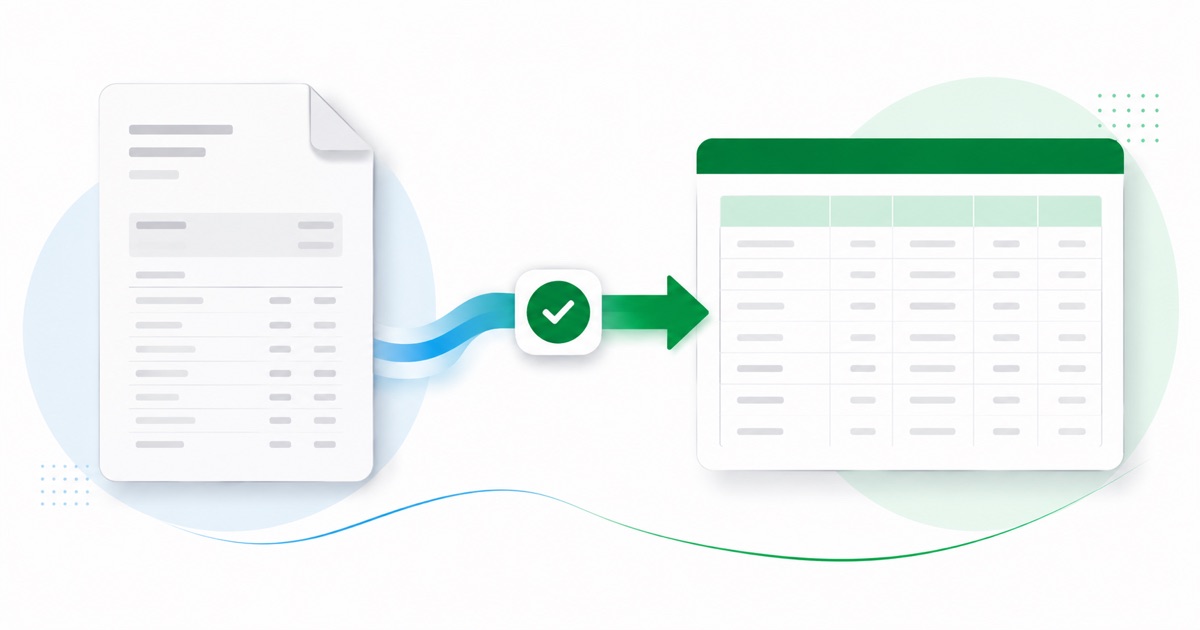
About CommBank statements
CommBank (Commonwealth Bank) is the largest of Australia's big four banks. Whether you bank in branch or online, the statement is the same monthly PDF, downloaded from NetBank or the CommBank app, under Statements.
CommBank's NetBank statement uses Date, Transaction, Debit, Credit and Balance, with EFTPOS, BPAY and direct-debit detail that often wraps onto a second line. That's exactly the detail that gets scrambled when you paste a PDF into a spreadsheet, and exactly what the converter preserves, column by column.
The figures stay in AUD (Australian dollars) and dates read DD/MM/YYYY, the same as on the original statement. Even a photographed page converts — OCR pulls the columns out, and the reconciliation check runs regardless of how the PDF was made.
Once it's in Xero, you reconcile the lines like any other import — the conversion just saves you the typing.
Why people convert CommBank to Xero
Xero's bank feeds don't always reach back as far as you need, and older CommBank months often aren't in the feed at all. Converting the statement PDF lets you bring those months in by hand, cleanly, instead of typing each line into the reconcile screen.
For anyone reconciling CommBank against Xero after the fact, the value is in not retyping. You keep the original PDF as your source, convert it, and reconcile the imported lines — the figures stay tied back to the statement.
Import a CommBank statement into Xero
Xero takes the CSV through its own Import a Statement screen.
- Convert the PDF above and download the Xero CSV.
- In Xero: Accounting → Bank accounts.
- Open the account, then Manage account → Import a statement.
- Upload the CSV — the date, description and amount columns line up.
- Reconcile the imported lines as usual.
The totals are checked first
Every file is reconciled first: opening balance plus money in, minus money out, should land on the closing balance. If it doesn't, you see it here instead of finding out inside Xero.
Frequently asked questions
How does a CommBank statement get into Xero?
Yes — the CSV goes in through Xero's Import a Statement screen and the date, description and amount columns line up, so you go straight to reconciling. If Xero asks you to confirm the column mapping the first time, save it and later imports remember the layout.
How is a CommBank statement laid out?
CommBank's NetBank statement uses Date, Transaction, Debit, Credit and Balance, with EFTPOS, BPAY and direct-debit detail that often wraps onto a second line. The converter reads each of those into its own column, so the Xero-ready CSV imports into Xero cleanly.
Where do I download the CommBank statement?
From NetBank or the CommBank app, under Statements. Save the PDF, then drop it into the converter above — multi-page and multi-month statements are read in one go.
Does it work on a scanned CommBank statement?
Yes. Scanned or photographed PDFs are read with OCR into the same columns, and the balance check still runs, so a scan converts the same as a digital download.
Do I have to pay up front?
Converting is free to start. Excel, CSV and JSON download with no login; the Xero file is included with every paid plan, starting with Starter.