
 AU
AU




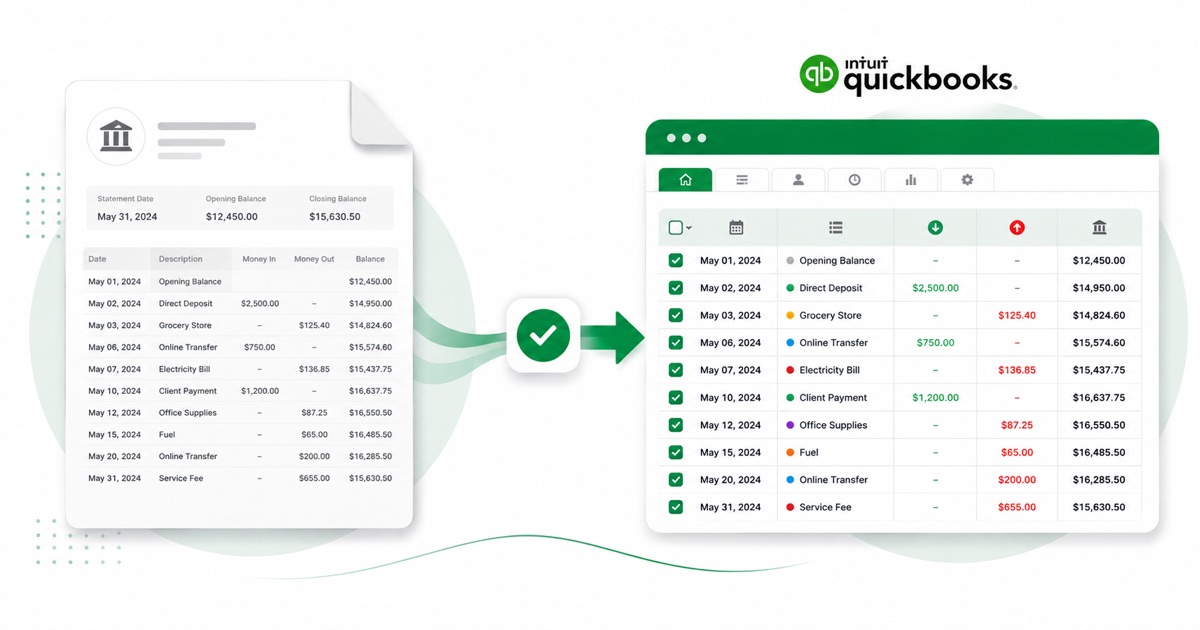
About NAB statements
NAB (National Australia Bank) is one of the big four and leans heavily towards business banking. You grab the statement PDF from NAB Internet Banking or the app, under Statements — same as you would for any branch-based account.
The part a copy-paste can't handle is the layout. NAB packs the payment type, payee and any BPAY biller reference into a single Transaction Details column. The converter reads all of that into its own columns instead of losing it.
The figures stay in AUD (Australian dollars) and dates read DD/MM/YYYY, the same as on the original statement. Scanned or photographed PDFs work too: OCR reads them into the same columns, and the running balance is checked before anything downloads.
You end up with a file QuickBooks accepts on the first try, with the PDF-wrangling taken care of before it gets there.
Why people convert NAB to QuickBooks
When you're cleaning up QuickBooks or taking on a new client, there are usually NAB months with no feed behind them. A converted file fills those in under Upload from file, instead of keying each transaction.
It also saves the back-and-forth at year end. Instead of asking a client for a CSV their NAB login may not even offer, you take the PDF they already have and convert it, so the numbers in QuickBooks match the statement line for line.
Import a NAB statement into QuickBooks
QuickBooks Online takes a CSV; QuickBooks Desktop takes a .qbo Web Connect file.
- Convert the PDF above. For QuickBooks Online download the QuickBooks CSV; for Desktop download the QBO.
- QuickBooks Online: Banking → Bank transactions → Link account → Upload from file.
- Pick the CSV, map Date / Description / Amount, choose the account, and import.
- QuickBooks Desktop: File → Utilities → Import → Web Connect Files, then select the .qbo.
One honest caveat
The QBO file carries a placeholder bank id, so QuickBooks Desktop can reject it with an OL-301 error ("not a participating financial institution") until you set your own bank's id. For a reliable import, use the QuickBooks CSV in QuickBooks Online instead — we don't claim the QBO will import everywhere.
The totals are checked first
The totals are checked before you download. If a row is missing, the statement gets flagged right here — so a gap shows up before it reaches QuickBooks or your client, not after.
Frequently asked questions
Does this go straight into QuickBooks?
In QuickBooks Online the CSV imports cleanly under Banking → Upload from file. The Desktop QBO can hit an OL-301 error ("not a participating financial institution") until you set your own bank's id — so for Online, stick with the CSV.
What does a NAB statement look like?
NAB packs the payment type, payee and any BPAY biller reference into a single Transaction Details column. The converter reads each of those into its own column, so the QuickBooks-ready file imports into QuickBooks cleanly.
Where do I download the NAB statement?
From NAB Internet Banking or the app, under Statements. Save the PDF, then drop it into the converter above — multi-page and multi-month statements are read in one go.
Can I use a photo of my NAB statement?
Yes. Scanned or photographed PDFs are read with OCR into the same columns, and the balance check still runs, so a scan converts the same as a digital download.
Is it free?
Converting is free to start. Excel, CSV and JSON download with no login; the QuickBooks file is included with every paid plan, starting with Starter.