
 IN
IN




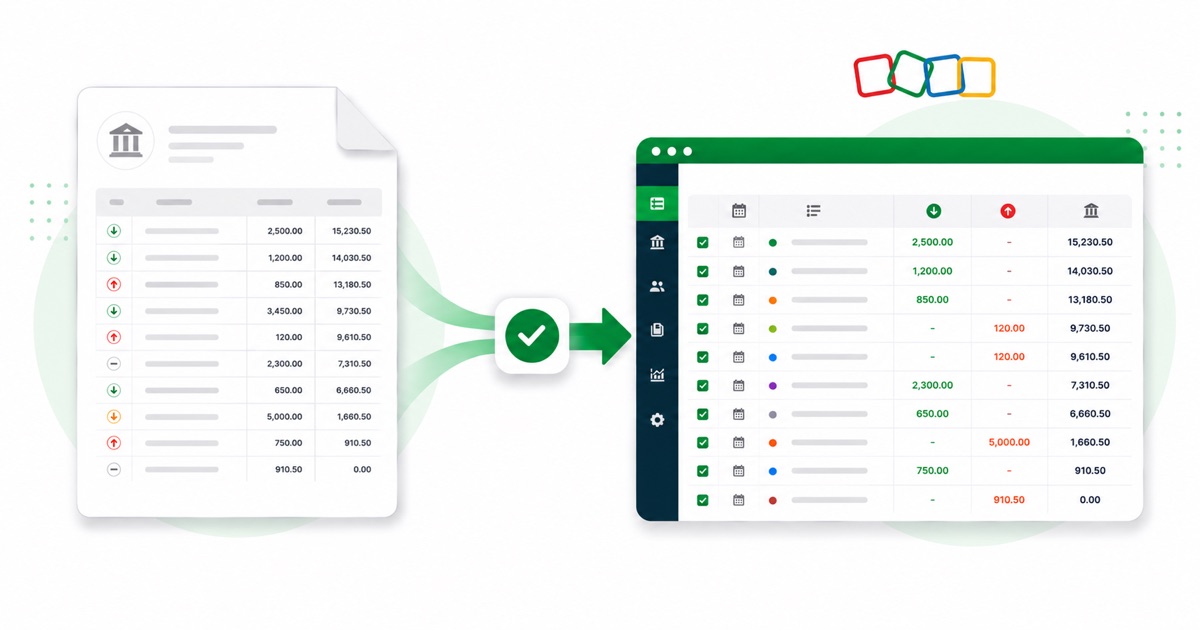
About Axis statements
Axis Bank is one of India's bigger private banks, and its e-statement comes as a password-protected PDF. You grab the statement PDF from Axis internet banking, where the e-statement downloads as a password-protected PDF — same as you would for any branch-based account.
It helps to know how the statement is put together. Axis lays the narration out in a Particulars column beside Debit and Credit amounts, delivered as a password-protected PDF. A plain PDF export flattens that structure; the converter keeps each piece in its own column.
Amounts are in INR (rupees) and the dates run DD/MM/YYYY. Since the PDF is password-locked, you enter the password once and it's handled in your browser before anything is converted. Scanned or photographed copies work too — they're read with OCR — and the running balance is checked either way before you download.
Once it's in Zoho Books, you reconcile the lines like any other import — the conversion just saves you the typing.
Why people convert Axis to Zoho Books
If you're reconciling a client's Axis account in Zoho Books, you'll hit months with no live feed. A converted CSV imports straight into Banking → Import Statement, so the gaps fill in without retyping.
It also saves the back-and-forth at year end. Instead of asking a client for a CSV their Axis login may not even offer, you take the PDF they already have and convert it, so the numbers in Zoho Books match the statement line for line.
Import a Axis statement into Zoho Books
Zoho Books imports a CSV — there's no separate Zoho file, so you use the clean CSV.
- Convert the PDF above and download the CSV.
- In Zoho Books: Banking → pick the account → Import Statement.
- Upload the CSV and map Date / Description / Amount.
- Import, then categorise the lines.
The totals are checked first
The totals are checked before you download. If a row is missing, the statement gets flagged right here — so a gap shows up before it reaches Zoho Books or your client, not after.
Frequently asked questions
Does Zoho Books need a special file?
No special file — Zoho Books imports a plain CSV, so you use the clean CSV from here. Go to Banking → your account → Import Statement, then map Date, Description and Amount. There's a preview before it commits, so you can check the columns matched before the lines post.
What does a Axis statement look like?
Axis lays the narration out in a Particulars column beside Debit and Credit amounts, delivered as a password-protected PDF. The converter reads each of those into its own column, so the Zoho-ready CSV imports into Zoho Books cleanly.
How many months can I convert at once?
Whatever you download in one PDF from Axis internet banking, where the e-statement downloads as a password-protected PDF. A multi-month e-statement converts in a single pass, and the balance is checked across the whole file.
My Axis PDF is password-protected — does that work?
Yes. You enter the password once and it's opened in your browser — the file isn't uploaded anywhere to be opened. After that it converts like any other statement.
Do I need to pay or sign in?
Yes — the CSV downloads with no login and no charge to start.