
 AU
AU




About ING Australia statements
ING Australia is a branchless online bank, so statements are download-only from the app or site. With no branches, the only copy is the download from the app or website, under Statements — that's the file this works on.
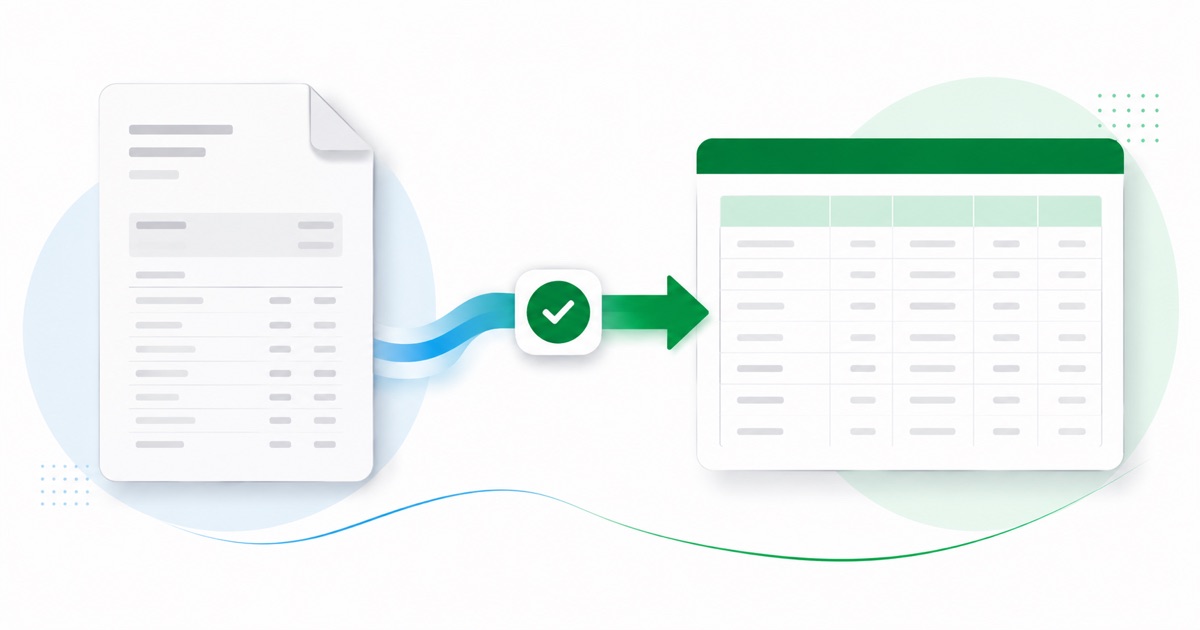
It helps to know how the statement is put together. An ING statement shows the monthly pattern behind its bonus interest — a set deposit and a run of card purchases — with the Savings Maximiser often alongside. A plain PDF export flattens that structure; the converter keeps each piece in its own column.
The figures stay in AUD (Australian dollars) and dates read DD/MM/YYYY, the same as on the original statement. If your only copy is a scan or a phone photo, that's fine — OCR handles it, and the totals still get reconciled.
After that you're just reconciling in Xero; the awkward part of getting the data out of the PDF is handled.
Why people convert ING Australia to Xero
Bank feeds in Xero can also duplicate or mis-code lines from an account like ING Australia, and unpicking that is slower than a clean import. Converting the PDF gives you a tidy statement file you can bring in and reconcile against, feed or no feed.
The common case is a bookkeeper handed a folder of ING Australia PDFs and told to "get these into Xero." Converting each one is far quicker than retyping, and the balance check means you trust the totals before they land in the books.
Import an ING Australia statement into Xero
Xero takes the CSV through its own Import a Statement screen.
- Convert the PDF above and download the Xero CSV.
- In Xero: Accounting → Bank accounts.
- Open the account, then Manage account → Import a statement.
- Upload the CSV — the date, description and amount columns line up.
- Reconcile the imported lines as usual.
The totals are checked first
The converter checks the maths before handing you the file — so if a transaction dropped out of the PDF, you know about it now, not when the Xero balance is off.
Frequently asked questions
Does the CSV go straight into Xero?
Yes — the CSV goes in through Xero's Import a Statement screen and the date, description and amount columns line up, so you go straight to reconciling. If Xero asks you to confirm the column mapping the first time, save it and later imports remember the layout.
How is an ING Australia statement laid out?
An ING statement shows the monthly pattern behind its bonus interest — a set deposit and a run of card purchases — with the Savings Maximiser often alongside. The converter reads each of those into its own column, so the Xero-ready CSV imports into Xero cleanly.
Where do I get the ING Australia statement PDF?
From the app or website, under Statements. Export the actual statement PDF rather than screenshotting the transaction list — the PDF has the dates, amounts and balance the converter reads.
What if my ING Australia PDF is just a scan?
Yes. Scanned or photographed PDFs are read with OCR into the same columns, and the balance check still runs, so a scan converts the same as a digital download.
Do I have to pay up front?
Converting is free to start. Excel, CSV and JSON download with no login; the Xero file is included with every paid plan, starting with Starter.