
 IE
IE




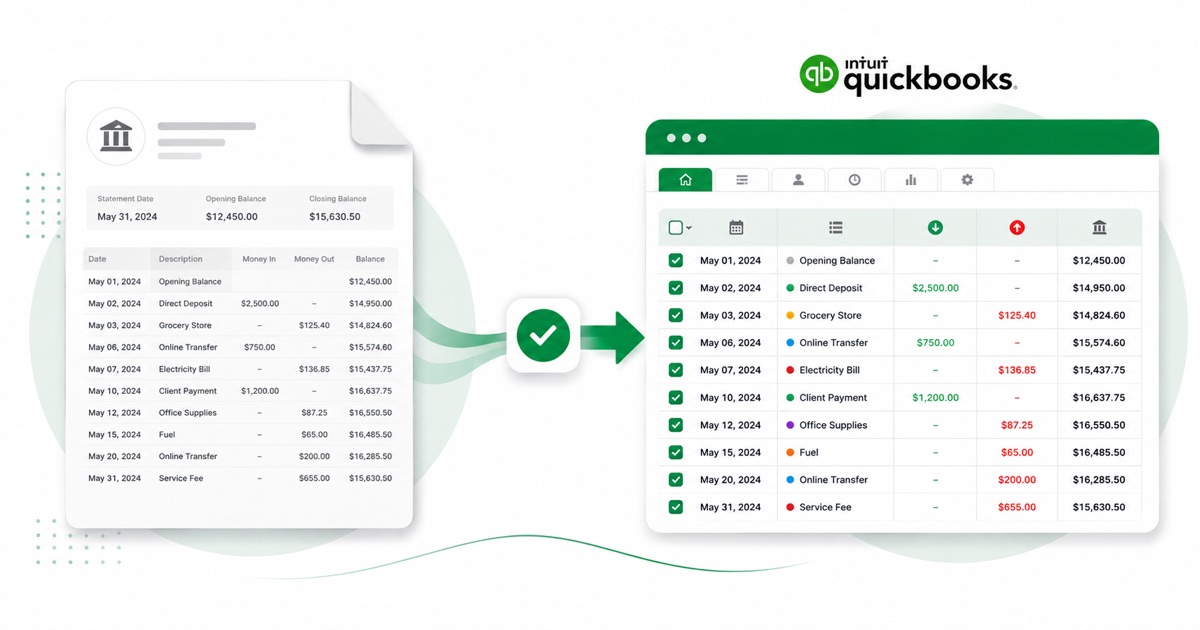
About AIB statements
AIB (Allied Irish Banks) is one of the two main Irish retail banks and a familiar name on most high streets in Ireland. Whether you bank in branch or online, the statement is the same monthly PDF, downloaded from AIB Internet Banking, under Statements.
The part a copy-paste can't handle is the layout. An AIB statement carries SEPA references and, on transfers, the counterparty's IBAN inside the Details column, all in euro. The converter reads all of that into its own columns instead of losing it.
Currency stays EUR (euro) and the DD/MM/YYYY dates carry straight through, exactly as they appear on the statement. Even a photographed page converts — OCR pulls the columns out, and the reconciliation check runs regardless of how the PDF was made.
You end up with a file QuickBooks accepts on the first try, with the PDF-wrangling taken care of before it gets there.
Why people convert AIB to QuickBooks
QuickBooks bank feeds can miss older periods, and a AIB feed connection sometimes drops or never covered the months you need. Converting the PDF gives you a file to upload for exactly those gaps, so the history is complete before you reconcile.
For anyone reconciling AIB against QuickBooks after the fact, the value is in not retyping. You keep the original PDF as your source, convert it, and reconcile the imported lines — the figures stay tied back to the statement.
Import an AIB statement into QuickBooks
QuickBooks Online takes a CSV; QuickBooks Desktop takes a .qbo Web Connect file.
- Convert the PDF above. For QuickBooks Online download the QuickBooks CSV; for Desktop download the QBO.
- QuickBooks Online: Banking → Bank transactions → Link account → Upload from file.
- Pick the CSV, map Date / Description / Amount, choose the account, and import.
- QuickBooks Desktop: File → Utilities → Import → Web Connect Files, then select the .qbo.
One honest caveat
The QBO file carries a placeholder bank id, so QuickBooks Desktop can reject it with an OL-301 error ("not a participating financial institution") until you set your own bank's id. For a reliable import, use the QuickBooks CSV in QuickBooks Online instead — we don't claim the QBO will import everywhere.
The totals are checked first
Every file is reconciled first: opening balance plus money in, minus money out, should land on the closing balance. If it doesn't, you see it here instead of finding out inside QuickBooks.
Frequently asked questions
Does this go straight into QuickBooks?
In QuickBooks Online the CSV imports cleanly under Banking → Upload from file. The Desktop QBO can hit an OL-301 error ("not a participating financial institution") until you set your own bank's id — so for Online, stick with the CSV.
What does an AIB statement look like?
An AIB statement carries SEPA references and, on transfers, the counterparty's IBAN inside the Details column, all in euro. The converter reads each of those into its own column, so the QuickBooks-ready file imports into QuickBooks cleanly.
Where do I download the AIB statement?
From AIB Internet Banking, under Statements. Save the PDF, then drop it into the converter above — multi-page and multi-month statements are read in one go.
Can I use a photo of my AIB statement?
Yes. Scanned or photographed PDFs are read with OCR into the same columns, and the balance check still runs, so a scan converts the same as a digital download.
Is it free?
Converting is free to start. Excel, CSV and JSON download with no login; the QuickBooks file is included with every paid plan, starting with Starter.