
 IE
IE




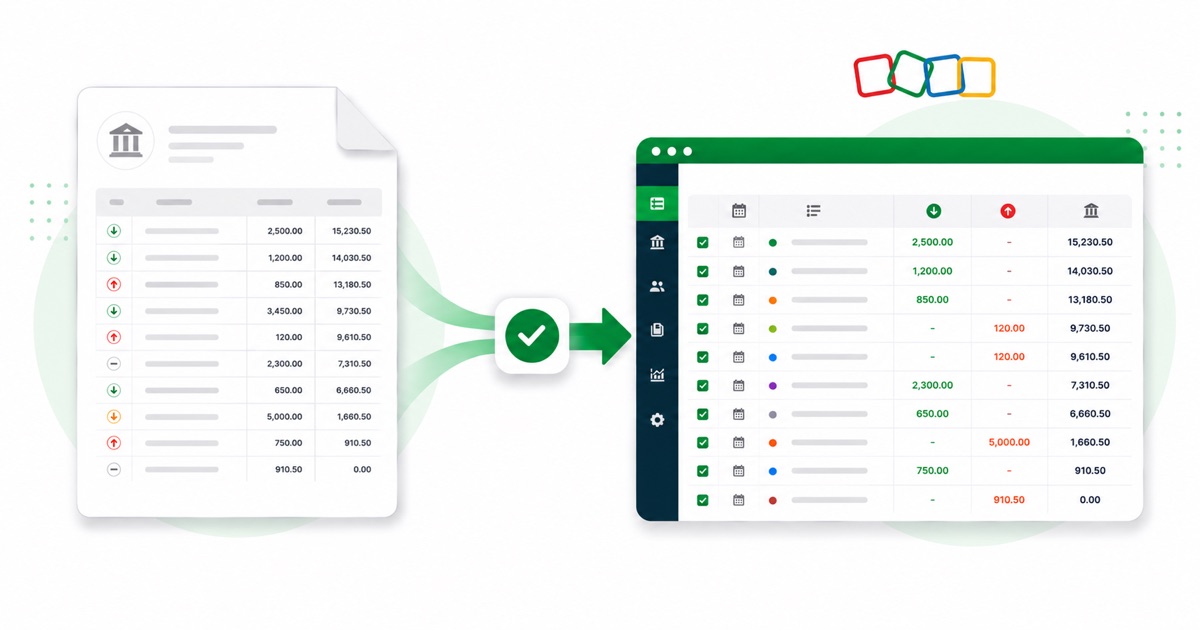
About AIB statements
AIB (Allied Irish Banks) is one of the two main Irish retail banks and a familiar name on most high streets in Ireland. The file you want is the official statement PDF from AIB Internet Banking, under Statements, not a printed mini-statement or a transaction search.
An AIB statement carries SEPA references and, on transfers, the counterparty's IBAN inside the Details column, all in euro. That's exactly the detail that gets scrambled when you paste a PDF into a spreadsheet, and exactly what the converter preserves, column by column.
The figures stay in EUR (euro) and dates read DD/MM/YYYY, the same as on the original statement. A scanned statement is no problem; it's read with OCR into the same layout, with the balance checked either way.
Once it's in Zoho Books, you reconcile the lines like any other import — the conversion just saves you the typing.
Why people convert AIB to Zoho Books
If you're reconciling a client's AIB account in Zoho Books, you'll hit months with no live feed. A converted CSV imports straight into Banking → Import Statement, so the gaps fill in without retyping.
It's handy mid-year too, not just at catch-up. A one-off AIB account, a statement the feed skipped, or a closed account you still need on file — convert the PDF and it goes into Zoho Books like any other import.
Import an AIB statement into Zoho Books
Zoho Books imports a CSV — there's no separate Zoho file, so you use the clean CSV.
- Convert the PDF above and download the CSV.
- In Zoho Books: Banking → pick the account → Import Statement.
- Upload the CSV and map Date / Description / Amount.
- Import, then categorise the lines.
The totals are checked first
Before the Zoho-ready CSV downloads, the running balance is checked end to end. A missing or doubled line is caught at this step, not after it's already in Zoho Books.
Frequently asked questions
What file does Zoho Books take?
No special file — Zoho Books imports a plain CSV, so you use the clean CSV from here. Go to Banking → your account → Import Statement, then map Date, Description and Amount. There's a preview before it commits, so you can check the columns matched before the lines post.
What does an AIB statement look like?
An AIB statement carries SEPA references and, on transfers, the counterparty's IBAN inside the Details column, all in euro. The converter reads each of those into its own column, so the Zoho-ready CSV imports into Zoho Books cleanly.
Where do I download the AIB statement?
From AIB Internet Banking, under Statements. Save the PDF, then drop it into the converter above — multi-page and multi-month statements are read in one go.
What if my AIB PDF is just a scan?
Yes. Scanned or photographed PDFs are read with OCR into the same columns, and the balance check still runs, so a scan converts the same as a digital download.
Do I need to pay or sign in?
Yes — the CSV downloads with no login and no charge to start.