
 US
US




About Chime statements
Chime is a fintech account (banking services through partner banks), so statements come out of the Chime app, not a traditional bank site. The proper statement PDF comes from the app or website, under Settings → Documents; that's the one to use, not an in-app transaction screen.
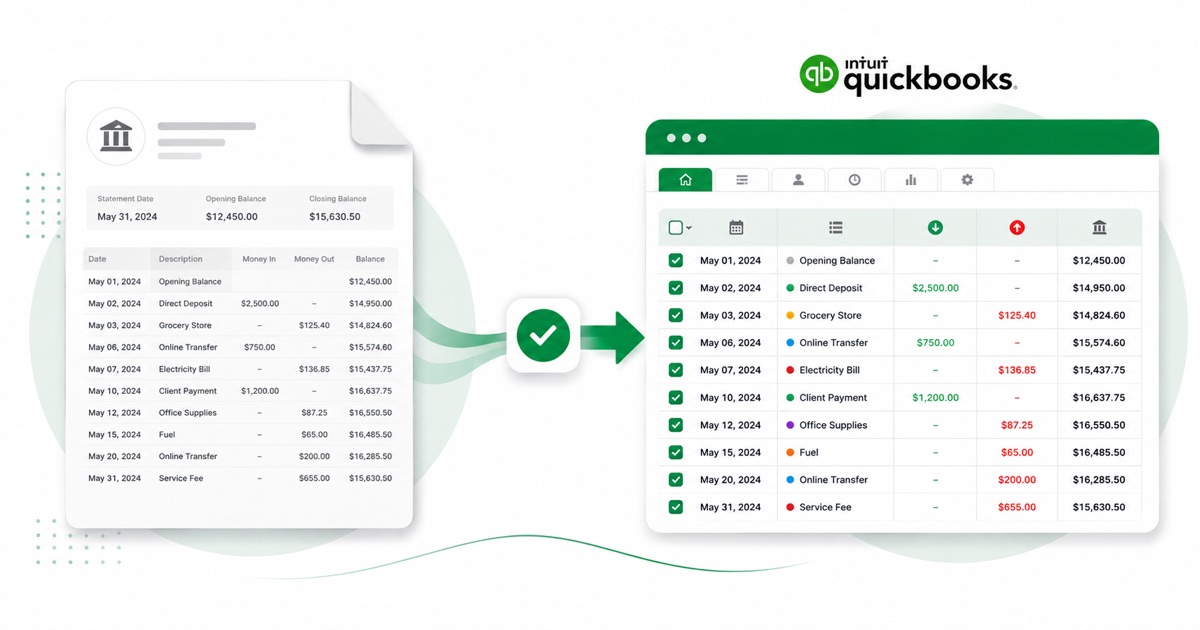
The part a copy-paste can't handle is the layout. A Chime statement runs as one list with round-ups to savings, SpotMe-covered payments, and early direct deposits. The converter reads all of that into its own columns instead of losing it.
You keep USD (US dollars) amounts and MM/DD/YYYY dates end to end, so nothing needs re-checking after the import. If your only copy is a scan or a phone photo, that's fine — OCR handles it, and the totals still get reconciled.
After that you're just reconciling in QuickBooks; the awkward part of getting the data out of the PDF is handled.
Why people convert Chime to QuickBooks
A Chime feed into QuickBooks can lag by a few days or stop mid-month, leaving a gap right when you're trying to close. Converting the statement PDF hands you the exact period as an upload file, so the close isn't held up by the feed.
The common case is a bookkeeper handed a folder of Chime PDFs and told to "get these into QuickBooks." Converting each one is far quicker than retyping, and the balance check means you trust the totals before they land in the books.
Import a Chime statement into QuickBooks
QuickBooks Online takes a CSV; QuickBooks Desktop takes a .qbo Web Connect file.
- Convert the PDF above. For QuickBooks Online download the QuickBooks CSV; for Desktop download the QBO.
- QuickBooks Online: Banking → Bank transactions → Link account → Upload from file.
- Pick the CSV, map Date / Description / Amount, choose the account, and import.
- QuickBooks Desktop: File → Utilities → Import → Web Connect Files, then select the .qbo.
One honest caveat
The QBO file carries a placeholder bank id, so QuickBooks Desktop can reject it with an OL-301 error ("not a participating financial institution") until you set your own bank's id. For a reliable import, use the QuickBooks CSV in QuickBooks Online instead — we don't claim the QBO will import everywhere.
The totals are checked first
The converter checks the maths before handing you the file — so if a transaction dropped out of the PDF, you know about it now, not when the QuickBooks balance is off.
Frequently asked questions
How does the Chime export get into QuickBooks?
In QuickBooks Online the CSV imports cleanly under Banking → Upload from file. The Desktop QBO can hit an OL-301 error ("not a participating financial institution") until you set your own bank's id — so for Online, stick with the CSV.
How is a Chime statement laid out?
A Chime statement runs as one list with round-ups to savings, SpotMe-covered payments, and early direct deposits. The converter reads each of those into its own column, so the QuickBooks-ready file imports into QuickBooks cleanly.
Where do I get the Chime statement PDF?
From the app or website, under Settings → Documents. Export the actual statement PDF rather than screenshotting the transaction list — the PDF has the dates, amounts and balance the converter reads.
Can I use a photo of my Chime statement?
Yes. Scanned or photographed PDFs are read with OCR into the same columns, and the balance check still runs, so a scan converts the same as a digital download.
Is it free?
Converting is free to start. Excel, CSV and JSON download with no login; the QuickBooks file is included with every paid plan, starting with Starter.