
 US
US




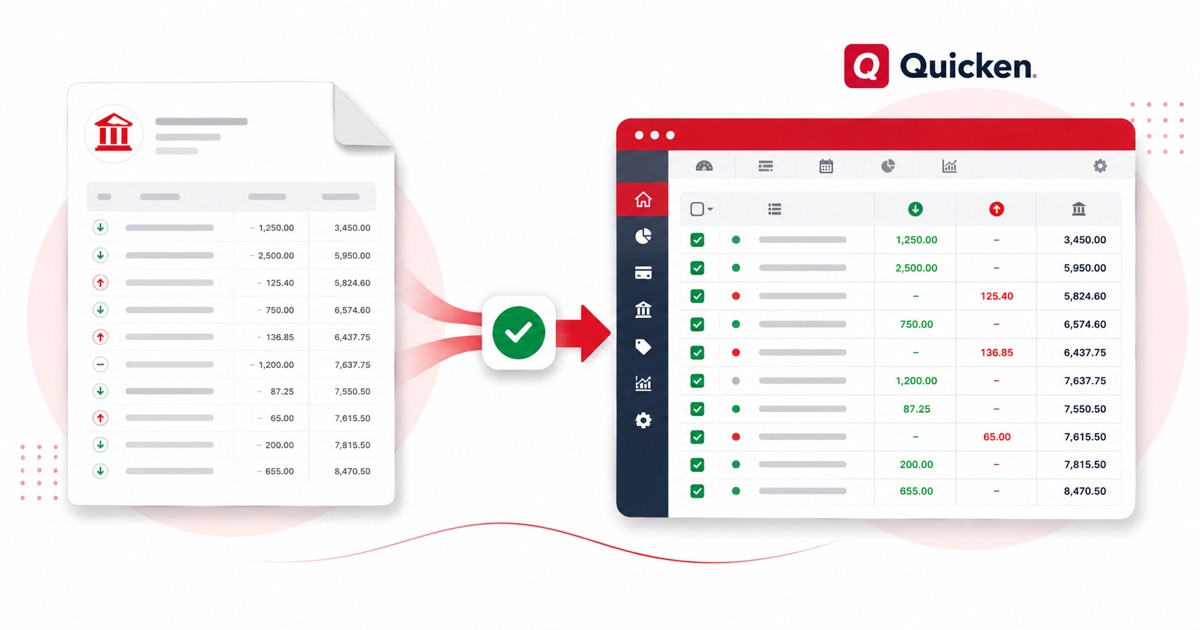
About Chime statements
Chime is a fintech account (banking services through partner banks), so statements come out of the Chime app, not a traditional bank site. Download the PDF from the app or website, under Settings → Documents and upload that, rather than a list view from the app.
It helps to know how the statement is put together. A Chime statement runs as one list with round-ups to savings, SpotMe-covered payments, and early direct deposits. A plain PDF export flattens that structure; the converter keeps each piece in its own column.
Amounts stay in USD (US dollars) and dates keep the MM/DD/YYYY order — no quiet day/month swaps on the way out. Scanned or photographed PDFs work too: OCR reads them into the same columns, and the running balance is checked before anything downloads.
Once it's in Quicken, you reconcile the lines like any other import — the conversion just saves you the typing.
Why people convert Chime to Quicken
If you're rebuilding history in Quicken — an old Chime account, or a period the download skipped — converting the PDF gives you an OFX you can import directly, rather than typing the register out.
It also saves the back-and-forth at year end. Instead of asking a client for a CSV their Chime login may not even offer, you take the PDF they already have and convert it, so the numbers in Quicken match the statement line for line.
Import a Chime statement into Quicken
Quicken reads OFX (preferred) or QIF.
- Convert the PDF above and download OFX (preferred) or QIF.
- In Quicken: File → Import → Web Connect File for OFX, or File → Import → QIF File for QIF.
- Choose the account to import into.
- Review the register and accept the new transactions.
The totals are checked first
The totals are checked before you download. If a row is missing, the statement gets flagged right here — so a gap shows up before it reaches Quicken or your client, not after.
Frequently asked questions
What's the best file for Quicken?
Yes — download OFX (best) or QIF and import it under File → Import. OFX carries a unique id per line, so re-importing the same file won't create duplicates.
What does a Chime statement look like?
A Chime statement runs as one list with round-ups to savings, SpotMe-covered payments, and early direct deposits. The converter reads each of those into its own column, so the OFX file imports into Quicken cleanly.
Where do I get the Chime statement PDF?
From the app or website, under Settings → Documents. Export the actual statement PDF rather than screenshotting the transaction list — the PDF has the dates, amounts and balance the converter reads.
What if my Chime PDF is just a scan?
Yes. Scanned or photographed PDFs are read with OCR into the same columns, and the balance check still runs, so a scan converts the same as a digital download.
Is it free?
Converting is free to start. Excel, CSV and JSON download with no login; the Quicken file is included with every paid plan, starting with Starter.